

What customers see
Customers reach your help content from the portal’s dashboard, once you’ve switched the links on under Help Desk → Configurations → User Menu (see Shortcodes, blocks and the portal menu), or from your own pages through shortcodes and blocks. Visitors who aren’t logged in see the same pages, apart from items marked Logged-in Users Only.
When the portal is set to Offline, these pages show the offline message too.
The knowledge base
Section titled “The knowledge base”The front page
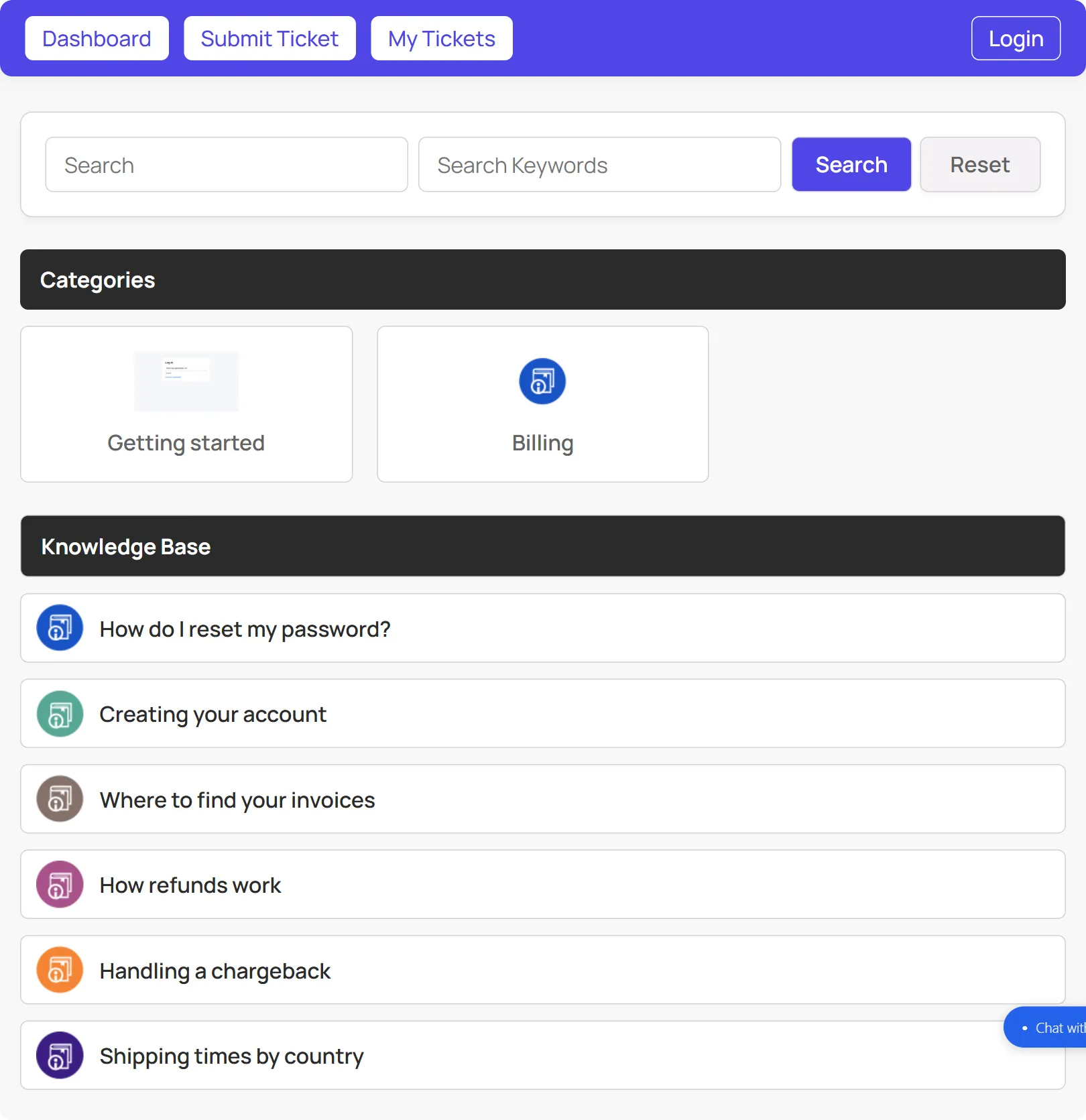
Section titled “The front page”From top to bottom:
- Search and Search Keywords, with Search and Reset buttons.
- Categories: a tile for each active top-level category that holds articles, with its logo. Pointing at a tile lists up to four of its sub-categories.
- Knowledge Base: the titles of published articles, in the order set on the article list, a page at a time. Click a title to read the article.
Searching
Section titled “Searching”| Box | What it matches |
|---|---|
| Search | Article titles and category names that contain the words. |
| Search Keywords | The Meta Keywords of articles and categories. |
The search covers published articles only. When a search of three characters or more finds nothing, it’s recorded under AI Agent → Unanswered Questions, grouped with the same question asked other ways, so you know which article to write next. This stops if Record what was shown is set to No under AI Agent → Settings (see Unanswered questions).
A category
Section titled “A category”Clicking a category shows its logo and name, tiles for its sub-categories, and the Knowledge Base list of articles in that category. Below, Subcategory Knowledge Base lists up to five articles from its sub-categories.
An article
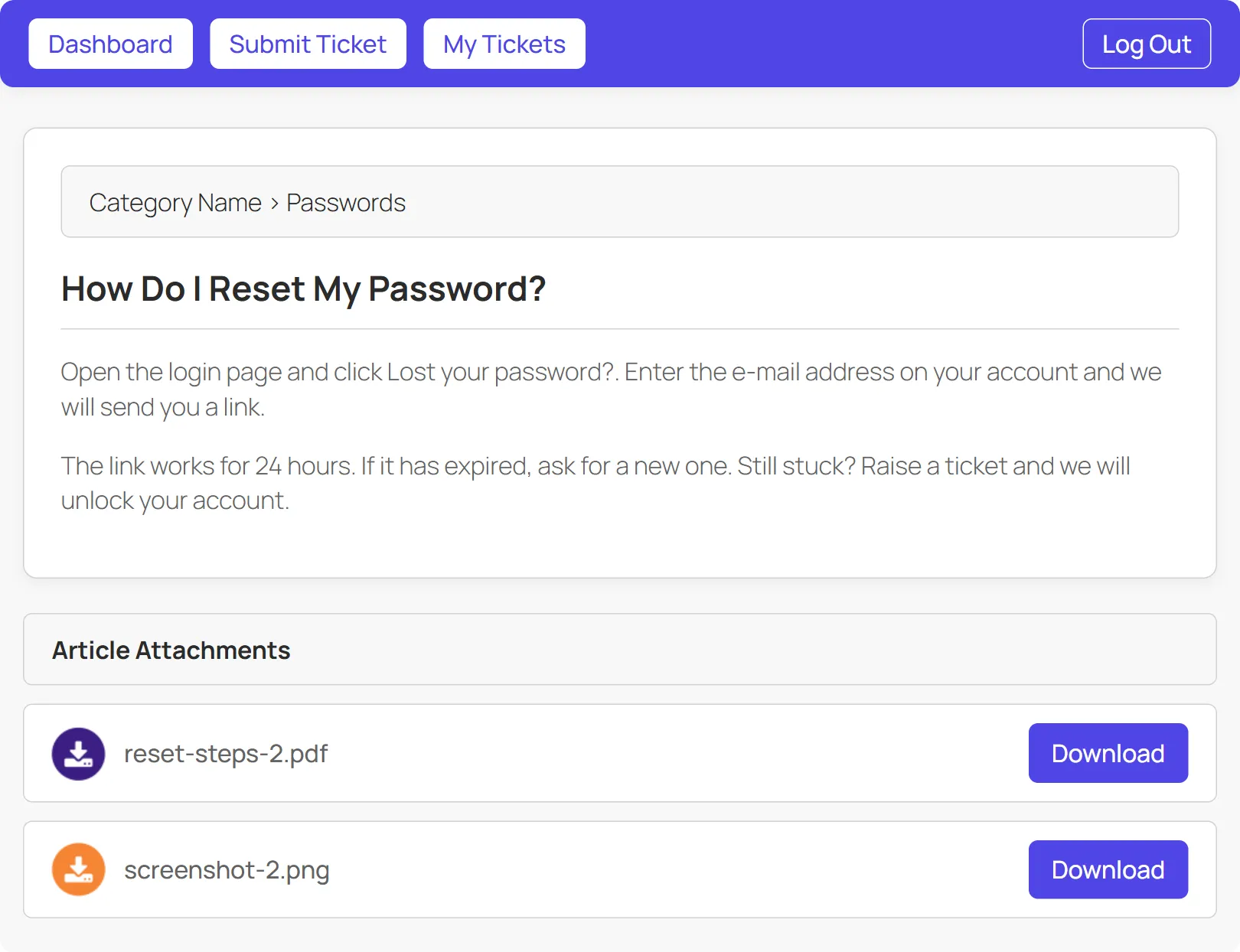
Section titled “An article”The article page shows Category Name > and the category, the subject, the text, and any files under Article Attachment or Article Attachments, each with a Download button.
- A visitor opening an article marked Logged-in Users Only is asked to log in, and comes back to the article afterwards.
- A draft, an article waiting for review, a retired article and an agents-only article can’t be opened by customers, even by typing the address. They see “No Record Found”, and the attachments can’t be downloaded either.
There is no rating or “was this helpful” button on the article page. That question is asked on the ticket form instead (see below).
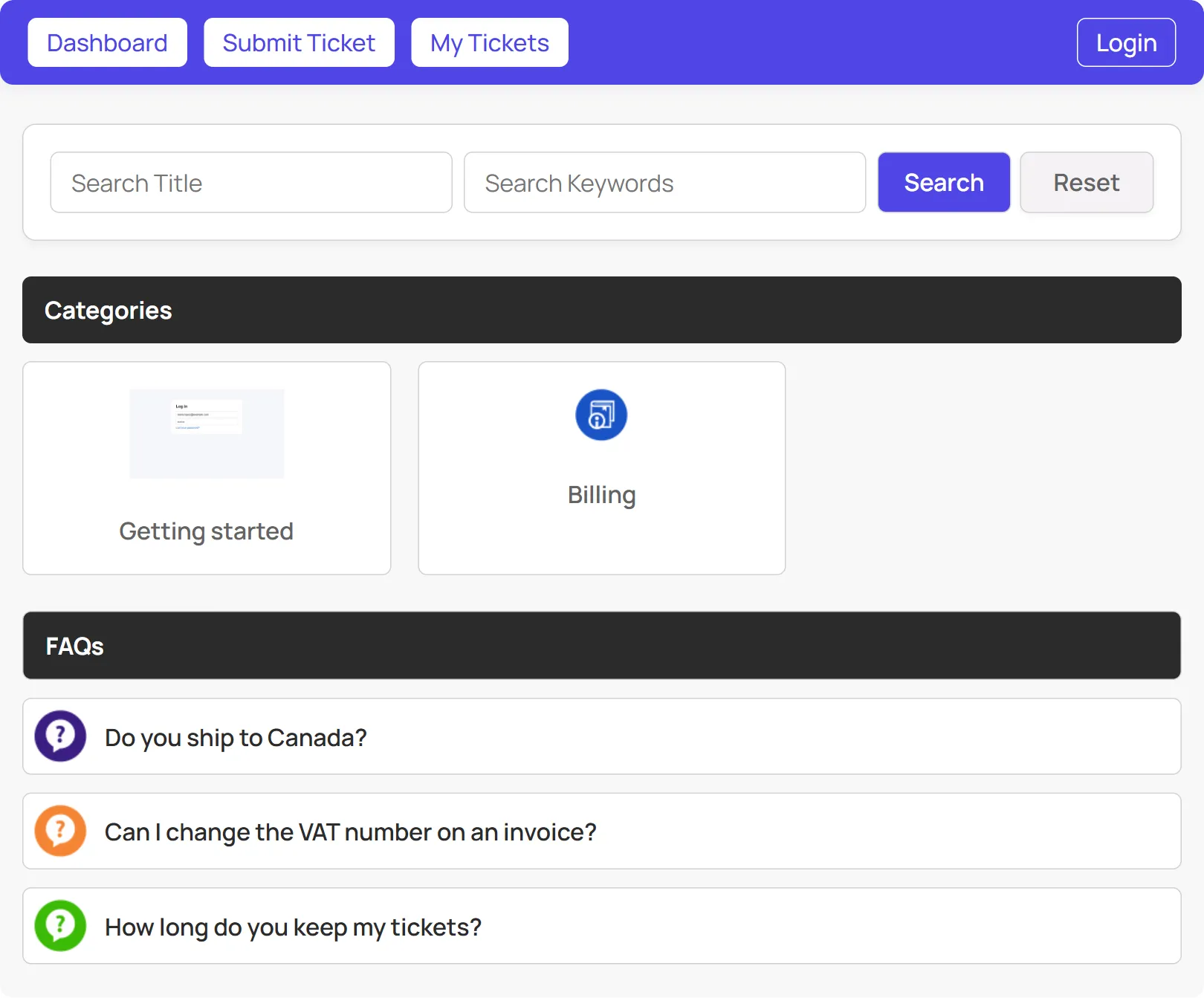
The FAQ page works like the knowledge base: Search Title and Search Keywords boxes, Categories tiles for categories that hold FAQs, and the FAQs list of titles. Inside a category, Subcategory FAQs lists up to five FAQs from its sub-categories.
Clicking an FAQ opens it on its own page with its category, question and answer. Search Title matches the question and category names; Search Keywords matches the category’s Meta Keywords.
Downloads
Section titled “Downloads”The downloads page has a Search box, Categories tiles for categories that hold downloads, and the Downloads list. Each download has a Download button.
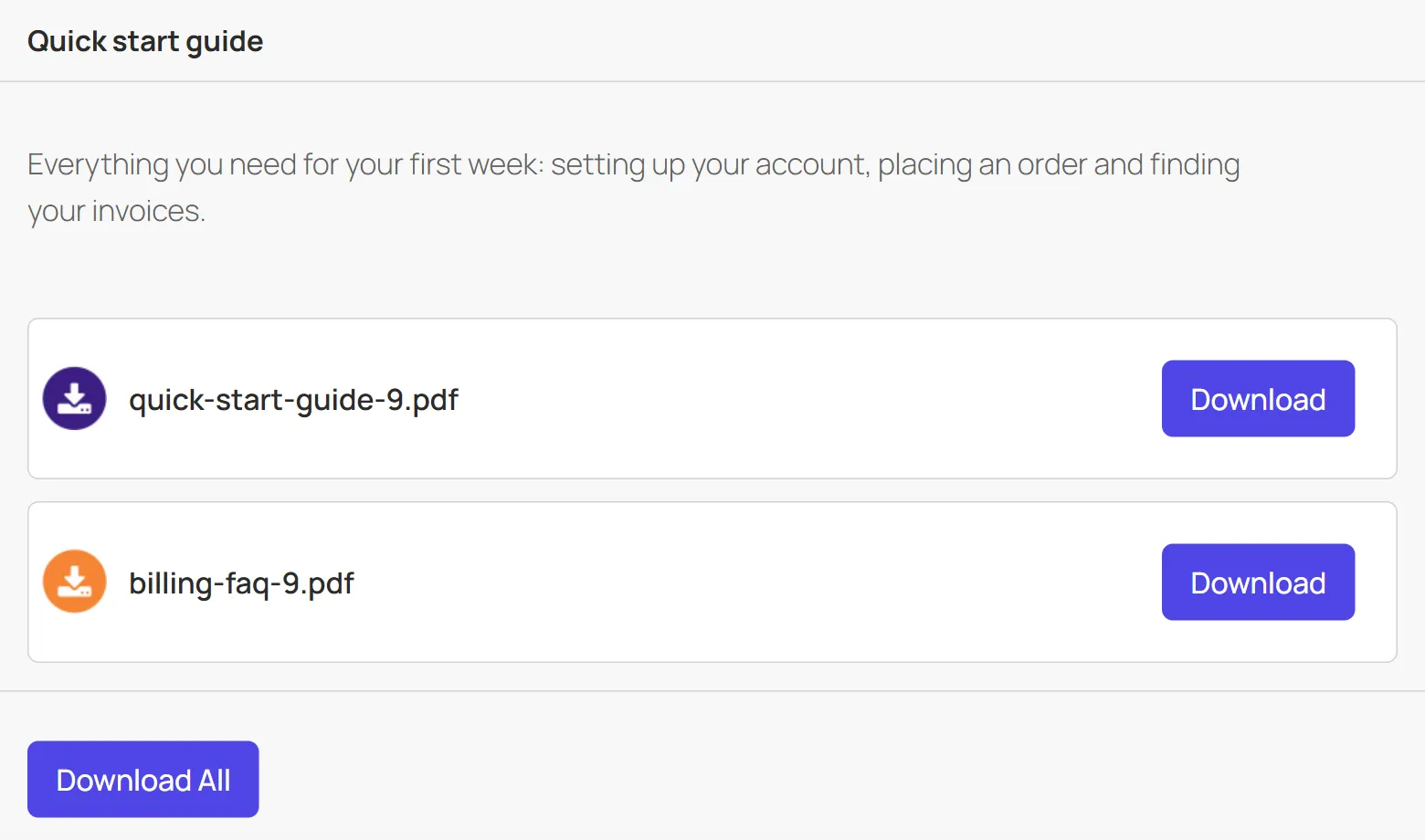
Clicking a download’s title or Download opens a window with its description and its files. Each file has a Download button, and Download All fetches every file in one zip.
Announcements
Section titled “Announcements”The announcements page has a Search box, Categories tiles for categories that hold announcements, and the Announcements list. Clicking one opens it on its own page with its category, title and text. An announcement marked Logged-in Users Only asks a visitor to log in first.
Suggestions on the ticket form
Section titled “Suggestions on the ticket form”While a customer types a new ticket, matching published articles and FAQs appear as suggested answers. Each shows its title and a short extract; the customer can open it, and a Yes, this solved my issue! button sits underneath. Clicking it thanks them and records that the suggestions solved the problem. These figures feed Shown, Opened and Solved it on Content Review.
What is suggested, how many, and when searching starts are set under AI Agent → Settings → Suggestions. See The ticket form and AI settings.