

Live chat
With the Customer Experience pack and live chat switched on, visitors can talk to your team from a chat window on your site. This page is the agent’s side. Setting chat up is in Live chat.
Who can answer
Section titled “Who can answer”You can take chats if you are on the Agents list, your agent record is switched on, and you are allowed to reply to customers. Light Agents can’t. If you aren’t set up, the console says “Only people on the Agents list, switched on and allowed to reply, can answer chats.”
Whether a visitor is asked to wait for a person depends on who is available: if nobody is available, visitors are offered a message form instead. Whether you count as available is worked out from your hours, your time off, how many open tickets you hold and your At the desk setting, all under My Hours & Leave (see Notifications and hours).
The chat console
Section titled “The chat console”Open Chat from the left menu in WordPress, or from the navigation strip in the portal. The number beside Chat is how many people are waiting plus how many of your own conversations have something new; you can see it from any desk screen.
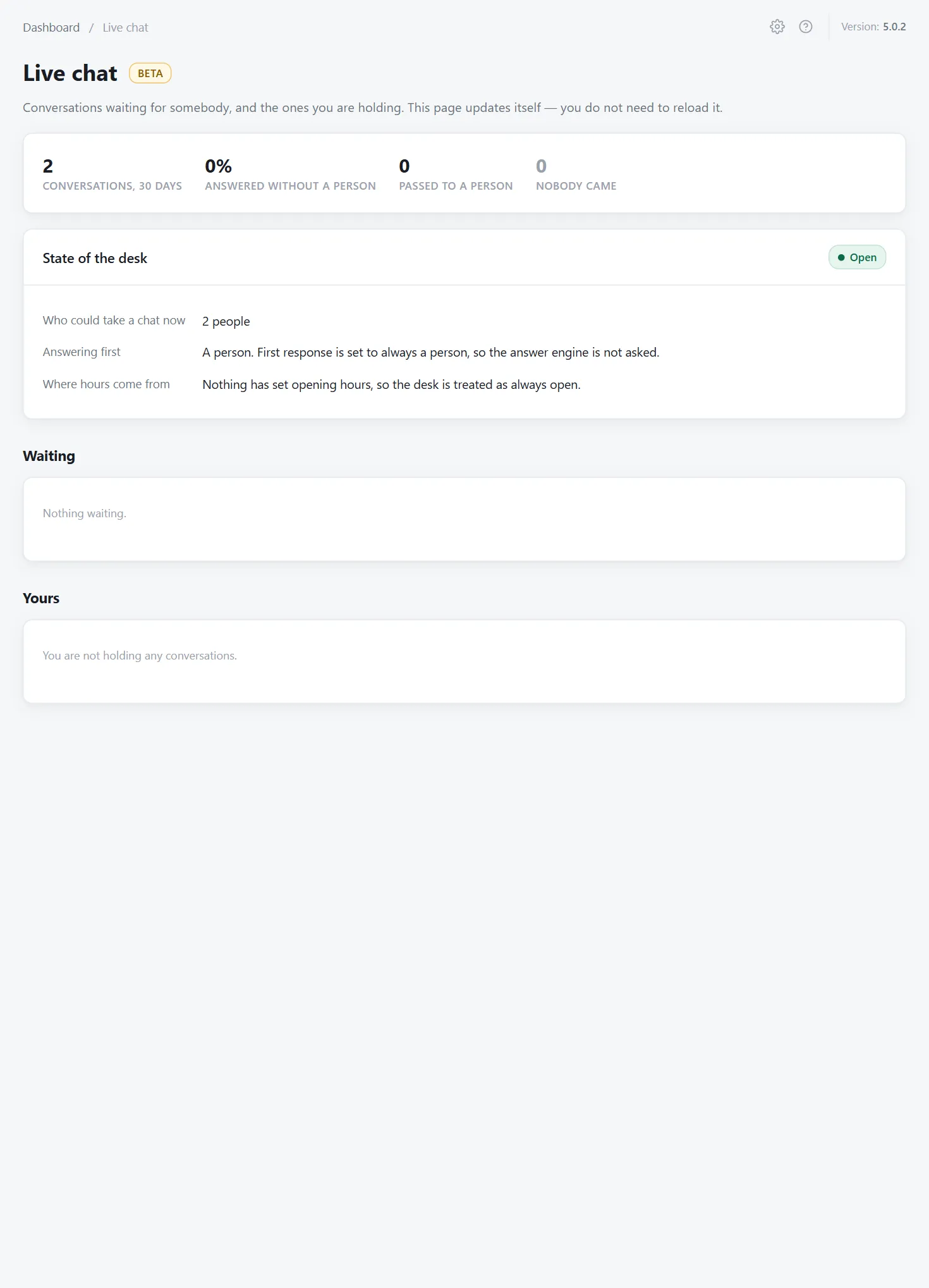
The page updates itself; you don’t need to reload it.
- State of the desk says whether chat is open, closed for the day, or switched off, who could take a chat now, and whether the automated assistant answers first.
- Waiting lists visitors waiting for a person.
- Yours lists the conversations you are holding. New marks one where the customer has written since you last looked.
If your site uses the automated assistant, it answers first and passes the conversation to a person when it can’t help. Its messages are marked Automated assistant in the thread.
Taking a conversation
Section titled “Taking a conversation”Click Take it on a waiting conversation. The customer sees “A person has joined the conversation.” If a colleague clicked first, you see “Somebody else took that one.”
Once taken, a conversation is yours alone: other agents can’t read it.
Beside the thread you see who the customer is and their Past tickets, and, on a shop site, their Orders and what they have Spent.
Replying
Section titled “Replying”Type in Reply and press Enter or click Send. Shift+Enter starts a
new line. The customer sees your message straight away.
To come back to a conversation later, click Open beside it under Yours.
Keeping it as a ticket
Section titled “Keeping it as a ticket”Click Keep as a ticket when the conversation needs follow-up: a refund to check, a fault to pass on. The whole conversation becomes a new ticket for the customer, in the chat’s department, and the console shows Kept as ticket # and its number. Doing it again gives you the same ticket rather than a second one.
The ticket goes through the same steps as any new ticket, including automatic assignment if your site uses it.
A conversation with no e-mail address can’t become a ticket: “No email address on this conversation, so it cannot become a ticket.”
Ending
Section titled “Ending”Click End when you are done. The conversation is closed.
End doesn’t make a ticket. If the matter isn’t settled, click Keep as a ticket first.