

Working a ticket
Click a ticket’s subject on the Tickets screen to open it. The customer’s message is at the top, the conversation runs down the middle, and the reply box is at the bottom. The ticket’s details are down the right-hand side.
The ticket’s details
Section titled “The ticket’s details”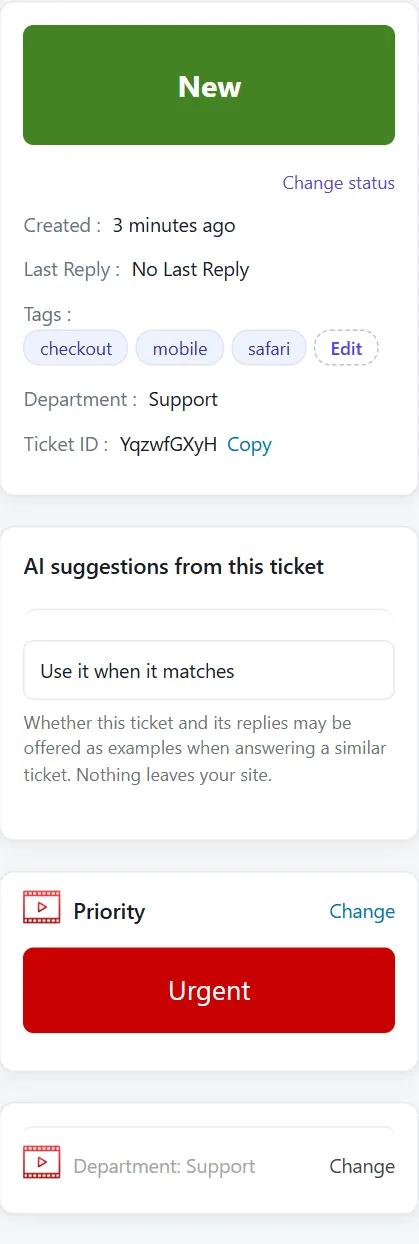
Status. Click Change status to pick any status from a list.
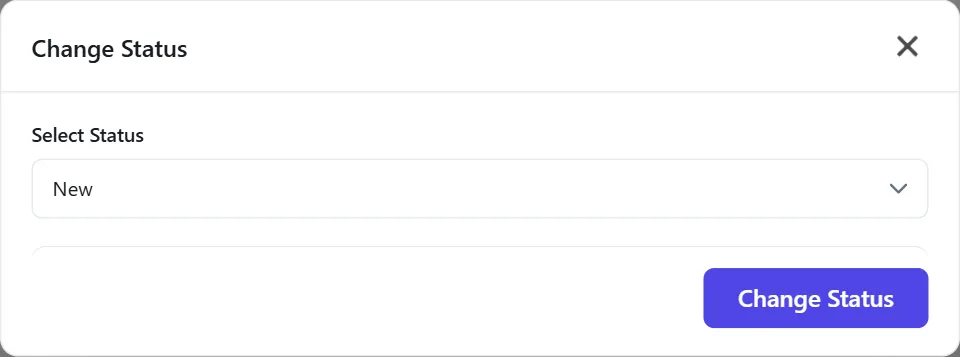
Most of the time you won’t need to: replying, closing and reopening set the status for you. See Statuses and priorities for which action sets which status.
Tags. Click Add tags (or Edit once a ticket has some) and type tags
separated by commas, for example billing, refund. A tag that doesn’t exist yet
is created as you save. Saving replaces the ticket’s whole list, so keep the
tags you want. Tags show in the queue, and you can filter by them under More
filters.
Priority. Click Change beside it. Unlike a status change, a priority change e-mails the customer by default.
Department. Click Change beside it to move the ticket to another department. See Departments.
Ticket ID. Copy puts it on your clipboard.
AI suggestions from this ticket decides whether this ticket’s replies may be offered as examples when someone answers a similar ticket later: Use it when it matches, Prefer it — a good example or Never use it. Nothing leaves your site.
Actions
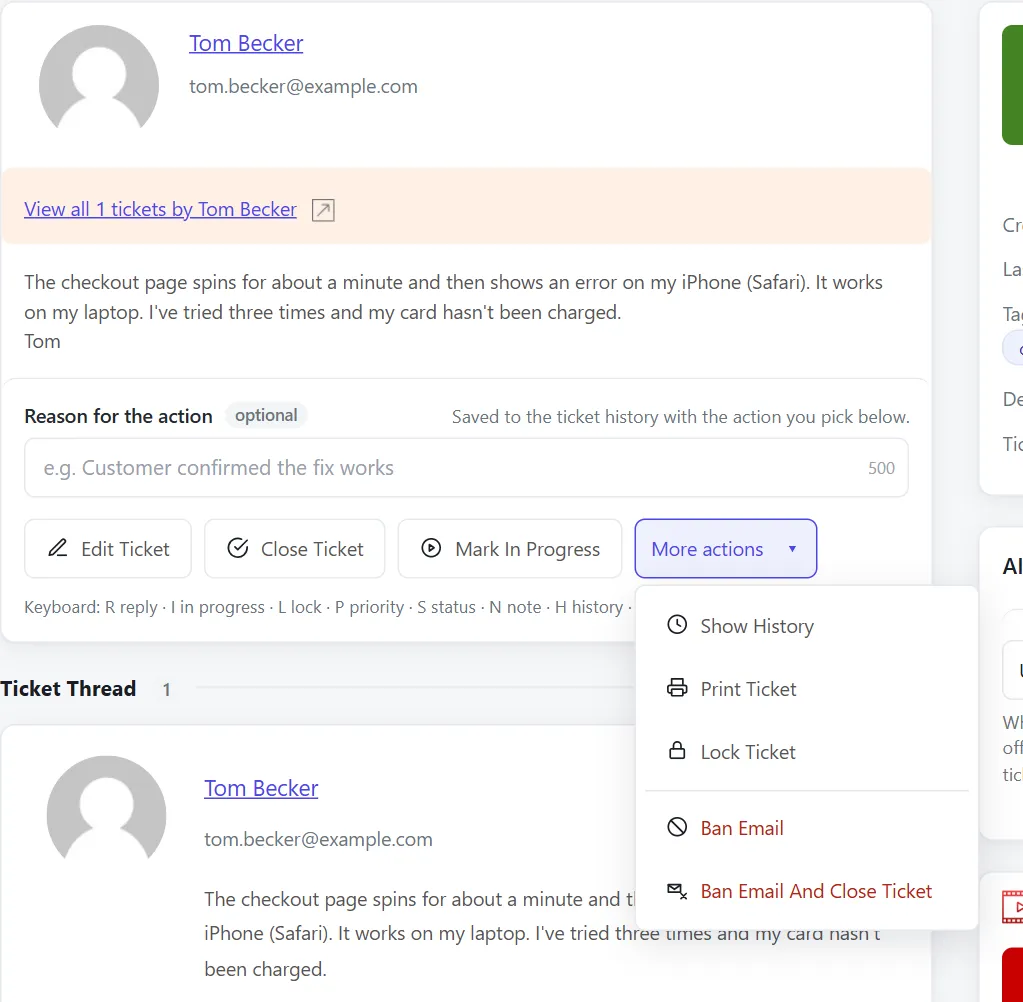
Section titled “Actions”The buttons under the customer’s message act on the whole ticket.
| Action | What it does |
|---|---|
| Edit Ticket | Change the ticket’s details. See Editing a ticket. |
| Close Ticket | Sets the status to Closed and records who closed it. The customer is e-mailed. |
| Reopen Ticket | Shown instead of Close on a closed ticket. Sets the status back to New. It only works within the reopen period in your settings (50 days after the last reply, unless you changed it). |
| Mark In Progress | Sets the status to In Progress, to show someone is working on it. |
| More actions → Show History | Opens the ticket’s history. |
| More actions → Print Ticket | Opens a printable copy of the ticket. |
| More actions → Lock Ticket | Stops the customer replying. See below. |
| More actions → Ban Email | Adds the customer’s e-mail address to your banned list. |
| More actions → Ban Email And Close Ticket | Bans the address and closes the ticket in one step. |
Reason for the action is optional. For Mark In Progress, Lock and Unlock, what you write is saved with that action in the ticket’s history.
Locking a ticket
Section titled “Locking a ticket”A locked ticket shows a lock icon in the queue, and the customer’s reply box disappears from their portal. You and your team can still reply and add notes. Unlock Ticket in the same menu reverses it.
Banning an address
Section titled “Banning an address”Ban Email stops that address from raising new tickets: anyone using it sees “Banned email cannot create ticket”, and the attempt is logged under Incoming Email → Ban Log. Banning on its own leaves the current ticket open. Manage the list under Incoming Email → Banned Emails.
History
Section titled “History”Show History (or the H key) lists everything that has happened to the
ticket, newest first: when it was raised, replies, notes, status, priority and
department changes, locks, bans, tag changes and edits.
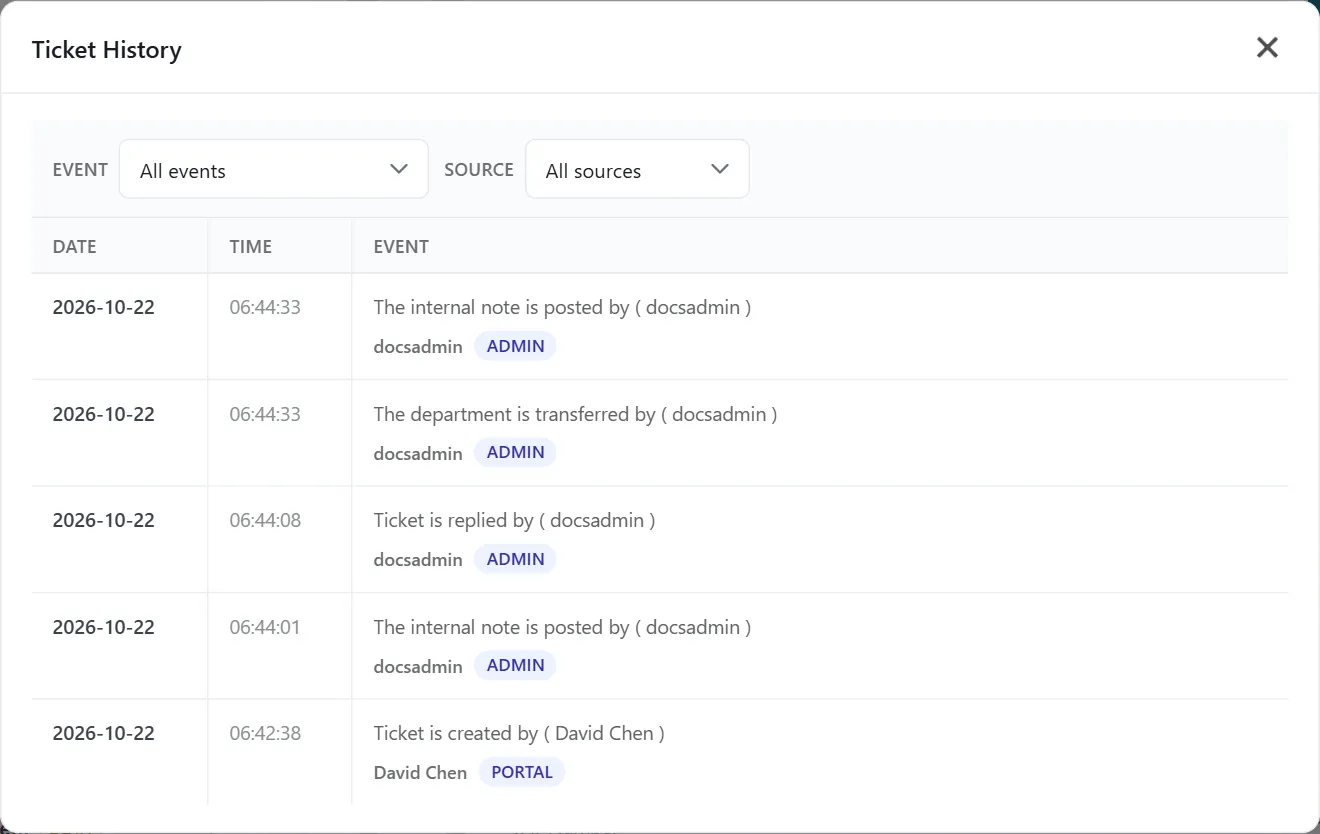
The Event and Source menus narrow the list. The source says where the change was made, for example Admin for this screen or Portal for the customer’s side.
Editing a ticket
Section titled “Editing a ticket”Edit Ticket opens the ticket’s form with its current values. You can change the customer’s name, e-mail and phone, the department, topic, product, priority, subject, message and attachments, and any custom fields. Status is not on this form; use Change status instead.
At the bottom, Reason For Edit lets you explain the change. It is saved as an internal note. Editing doesn’t e-mail anyone, and every field you change is listed in the ticket’s history.
Keyboard shortcuts
Section titled “Keyboard shortcuts”| Key | Does |
|---|---|
R |
Start a public reply |
N |
Start an internal note |
S |
Change the status |
P |
Change the priority |
I |
Mark In Progress (asks first) |
L |
Lock or unlock (asks first) |
H |
Show the history |
Shortcuts are ignored while you are typing in a box. The same list is shown under the action buttons.