

Visibility Rules
What an agent may see is normally set once, on their role, under What They May See (see Agent roles). Agents & Access → Access & Permissions → Visibility Rules is for the exceptions: giving one person something different from the rest of their role, and setting the default for agents nobody has decided about.
Where an agent’s settings come from
Section titled “Where an agent’s settings come from”The help desk looks in three places, in order, and uses the first it finds:
- Set for this agent on this screen.
- From the role name role, if their role has What They May See saved. Every role saved on the Add/Edit role screen has.
- On the site default.
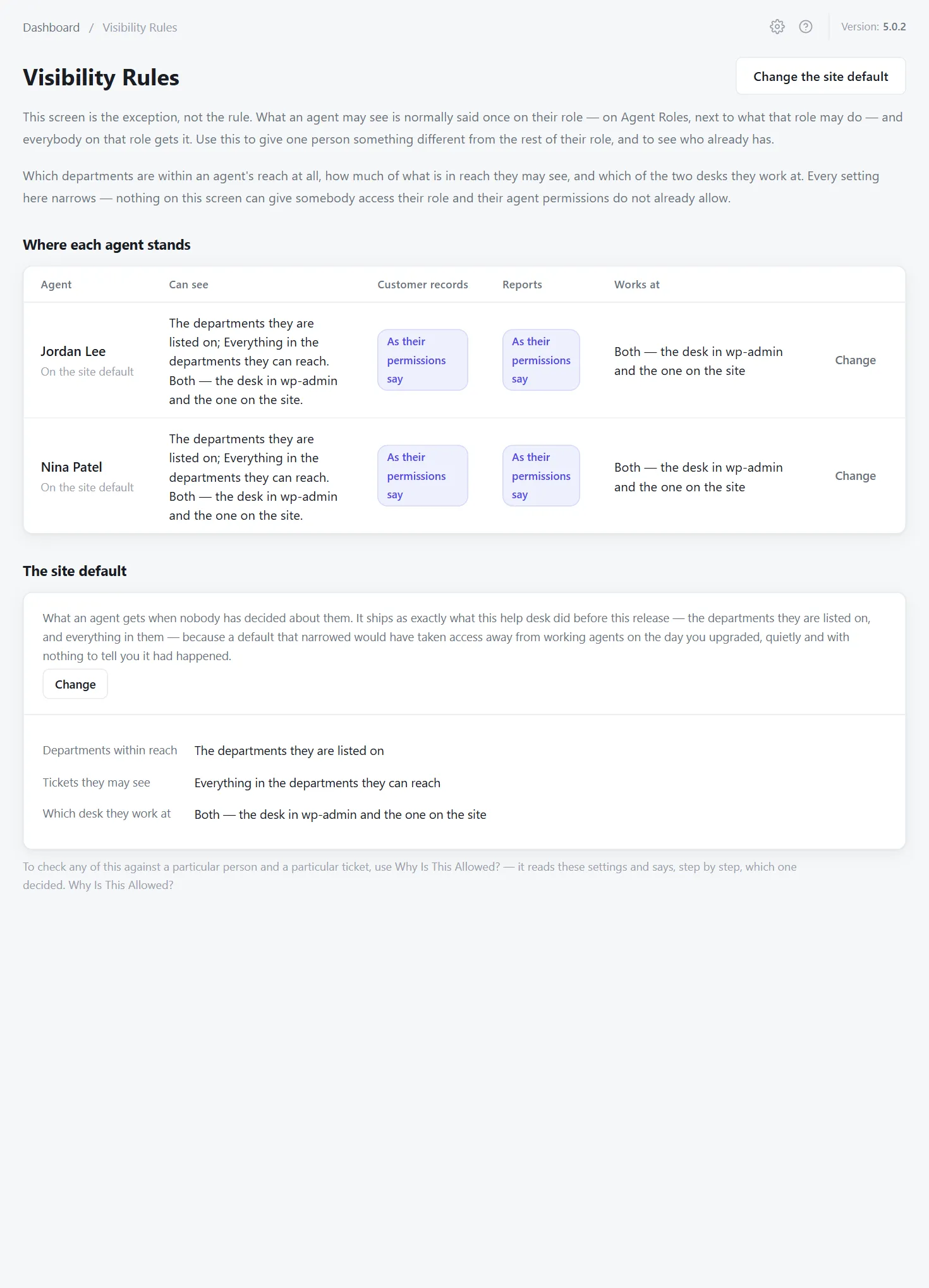
Where each agent stands lists every active agent with where their settings come from, a sentence saying what they Can see, their Customer records and Reports answers, and where they Works at. Rows with settings of their own are highlighted.
Changing one agent
Section titled “Changing one agent”- Click Change on their row.
- Set the six settings below.
- Click Save for this agent.
Put them back on their role deletes this agent’s own settings, including their AI reply suggestions come from answer, so they follow their role (or the site default) again.
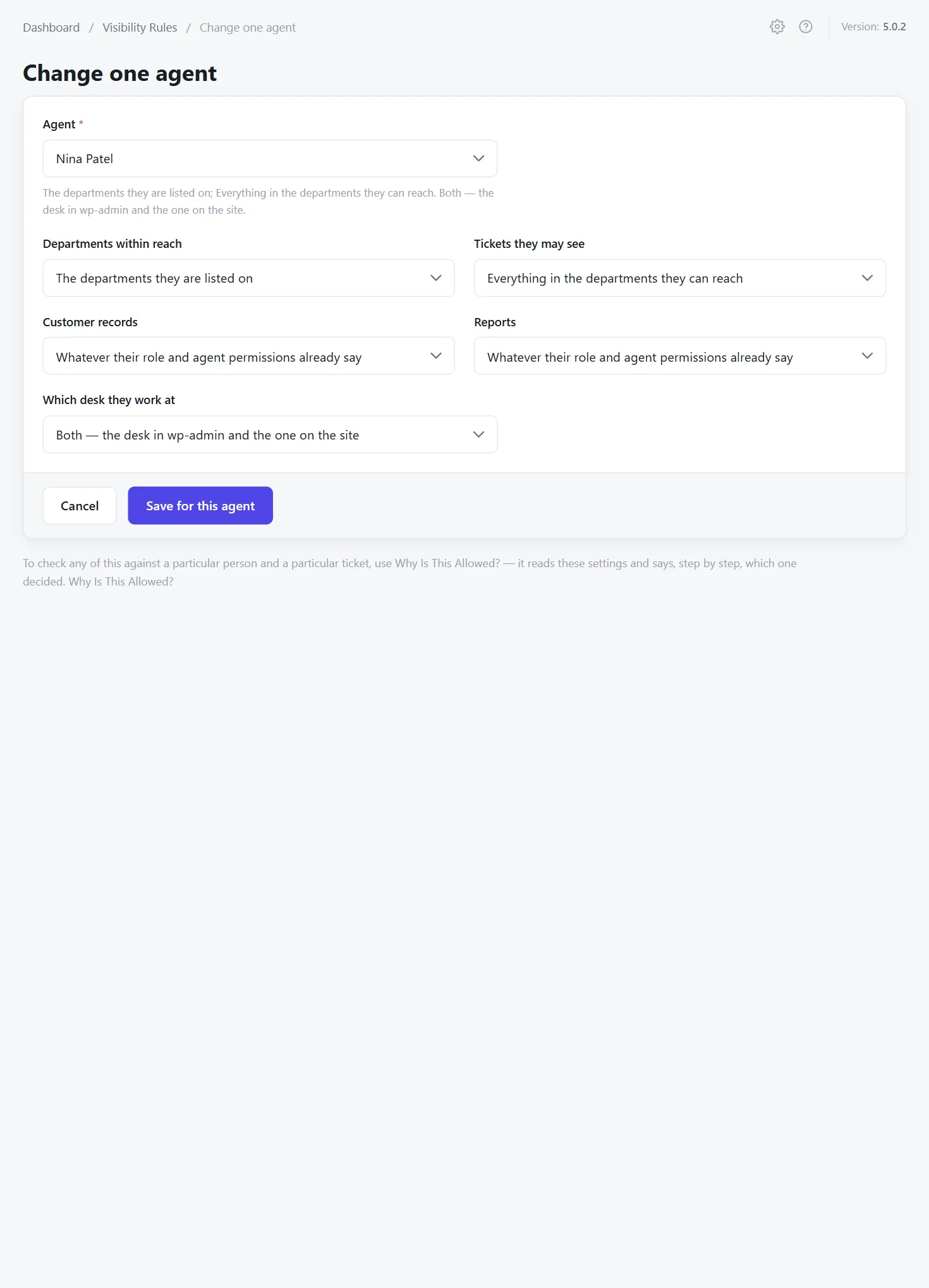
Departments within reach
Section titled “Departments within reach”Which departments’ tickets are open to them at all.
| Option | Means |
|---|---|
| No department — only what is assigned to them | No department. They see only tickets assigned to them. |
| The departments of tickets assigned to them | Whatever departments their assigned tickets are in today. Changes as their work changes. |
| The departments they are listed on | The departments ticked on their Permissions screen. |
| Every department | All departments on the site. |
Tickets they may see
Section titled “Tickets they may see”How much of what is within reach they see.
| Option | Means |
|---|---|
| Only tickets assigned to them | Their own work only. |
| Theirs, and their colleagues’ in the same departments | Plus tickets assigned to their teammates. An agent on no team sees tickets assigned to anyone in reach. |
| The above, and the unassigned pile | Plus tickets nobody has been given. |
| The above, and everything from a customer they already deal with | Plus every ticket in reach from a customer who has a ticket assigned to them. |
| Everything in the departments they can reach | Every ticket in reach. |
Whatever you choose, an agent always sees tickets assigned to them, tickets they raised themselves, and tickets they were added to by name. A ticket assigned to them stays visible even if it moves to a department they can’t reach.
Customer records and Reports
Section titled “Customer records and Reports”Each is Whatever their role and agent permissions already say, Yes, always or No, never. The first leaves the decision to their permission boxes. Yes, always and No, never override those boxes for this person: Yes, always lets them browse customer records (or read reports) even if their boxes don’t, and No, never stops them even if their boxes allow it.
AI reply suggestions come from
Section titled “AI reply suggestions come from”Which past replies the AI may offer this agent while they write a reply.
| Option | Means |
|---|---|
| Same as their role (…) | Follow their role’s setting, shown in brackets. The default. |
| All tickets | Suggestions from any past ticket. |
| Only tickets assigned to them or in their departments | Suggestions only from tickets assigned to them, or in the departments ticked on their Permissions screen. |
This used to be the Limit AI Replies to Agent-Assigned Tickets permission box. When you update, an agent whose own box differed from their role’s gets the matching answer here, so nobody’s suggestions change. The setting isn’t shown in Where each agent stands, and the site default doesn’t have it: an agent on the site default follows their role’s answer.
Which desk they work at
Section titled “Which desk they work at”| Option | Means |
|---|---|
| Both — the desk in wp-admin and the one on the site | They can work in WordPress admin and on the front-end agent desk. |
| Only the desk in wp-admin | The front-end desk refuses them. |
| Only the desk on the site, never wp-admin | The help desk menu doesn’t appear for them in WordPress admin, and its screens and actions refuse them there. They work from the front-end agent desk on your help desk page. |
Only administrators and people whose WordPress role is Help Desk Agent or Help Desk Light Agent get the desk in wp-admin. An agent with any other WordPress role (a Subscriber, say) works at the front-end desk whatever you choose here. To let them work in wp-admin too, give them one of the two help desk roles under Users in WordPress (see Your team and access).
If the desk you chose isn’t available (for example the pack is switched off, so there is no front-end desk), they get whichever desk is left rather than none.
The site default
Section titled “The site default”What an agent gets when neither they nor their role has settings. It ships as The departments they are listed on, Everything in the departments they can reach and Both, which is how the help desk behaved before these settings existed. Click Change the site default (at the top, or Change beside it) to edit it, then Save the site default. Agents with settings of their own keep them.
For someone starting tomorrow, the screen suggests The above, and the unassigned pile rather than everything.
How this fits with permissions
Section titled “How this fits with permissions”- The All Tickets permission box overrides all of this: an agent who has it sees every ticket on the site, whatever their visibility settings say.
- Administrators always see everything. These settings only apply to people on the Agents list.
- Visibility decides which tickets are in reach. The permission boxes decide what the agent may do to them (reply, close, assign and so on). An action on a ticket out of reach is refused even when the agent holds the permission, and bulk actions skip such tickets.
To check the result for a particular person and ticket, open Permission Check (the link Why Is This Allowed? at the foot of this screen goes there). It lists every action as Allowed or Refused and shows which setting decided, including steps such as “Granted to this agent on the Visibility screen.” See Your team and access. Agent Access under the same menu shows each person’s role, departments and where they work.