

Running and checking rules
Automation is built so that nothing changes a customer’s ticket by accident. Two switches have to be on before a rule acts, and every time a rule is asked about a ticket the answer is logged, whether it fired or not.
Switching rules on
Section titled “Switching rules on”The strip at the top of Automation & SLA → Automation says whether rules run at all, and how many are Live and Rehearsing. Click Switch rules on (or tick Let rules run under Automation settings). While rules are switched off, no rule runs, not even in rehearsal.
The strip also counts Waiting for approval, Runs still waiting and Runs logged.
Rehearse and Live
Section titled “Rehearse and Live”Each rule has its own Status:
| Status | What it does |
|---|---|
| Off | Never runs. Every new rule and every recipe starts here. |
| Rehearse: only log what it would do | Runs for real events and checks its conditions, but changes nothing. The log says what it would have done. A Wait is skipped (“Would wait 3 days, then carry on…”) and an approval is not asked for, so you see the whole rule at once. |
| Live: really do it | Does it. |
The Rules list shows each rule’s order, name, first trigger (“When: A ticket was raised +1 more”), its status as Off, Rehearsing or Live, and when it last ran.
A good routine: write the rule, leave it on Rehearse for a few days of real traffic, read its log, then switch it to Live.
Test against your recent tickets
Section titled “Test against your recent tickets”Open a saved rule with Edit. A notice at the top says, for example, “Tested against your 50 most recent tickets: it would fire on 2.” Test against your recent tickets below the form shows each ticket as would fire or would not fire; open one to see every step.
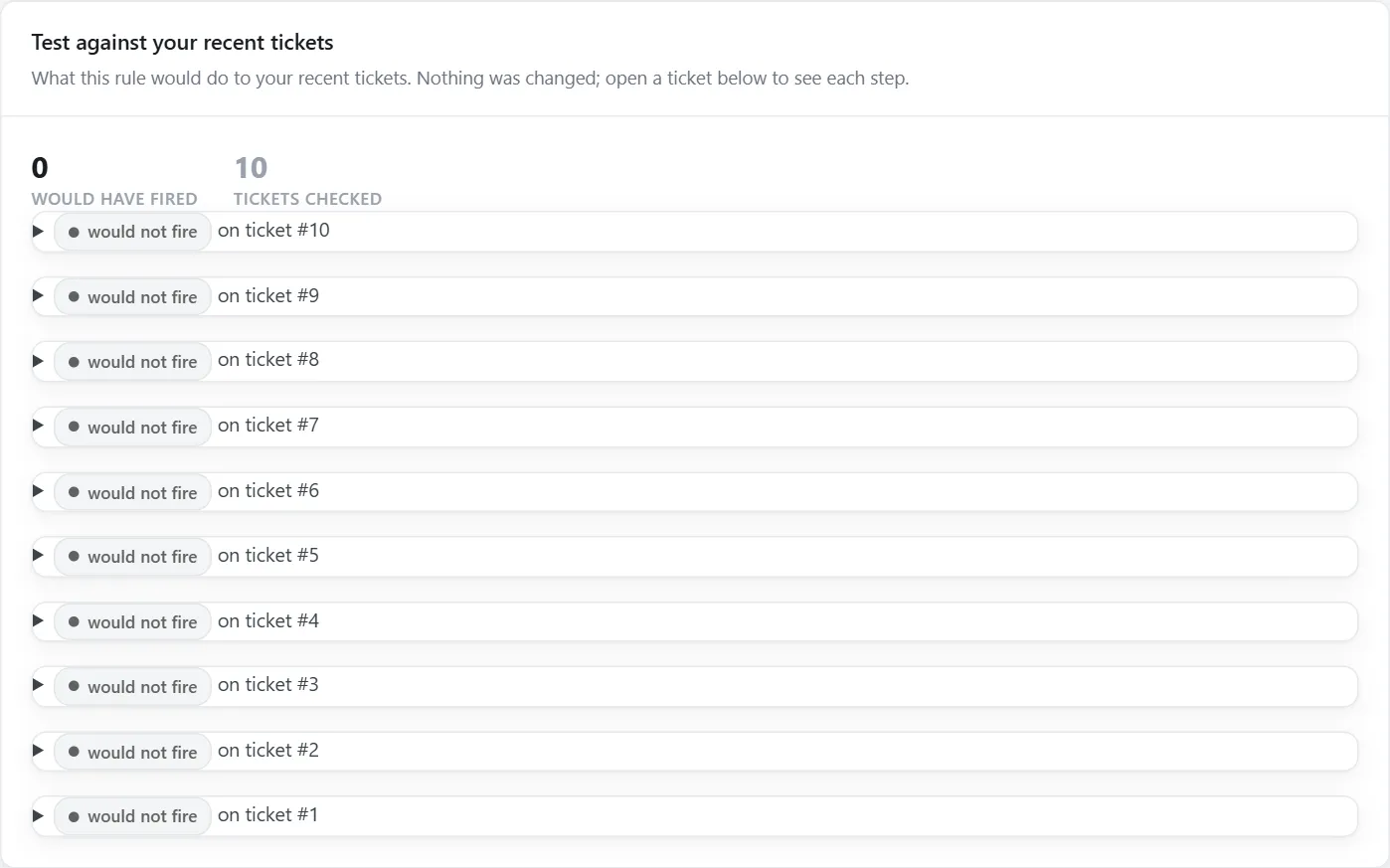
The test looks at up to 50 of your newest tickets, open or closed, and stops early once it has shown 10 and found at least one that fires. It changes nothing and is not written to the log.
The run log
Section titled “The run log”What the rules have done (on the Automation screen, the latest 25 runs of every rule) and What this rule has done (on a rule’s own page) list every time a rule was asked.
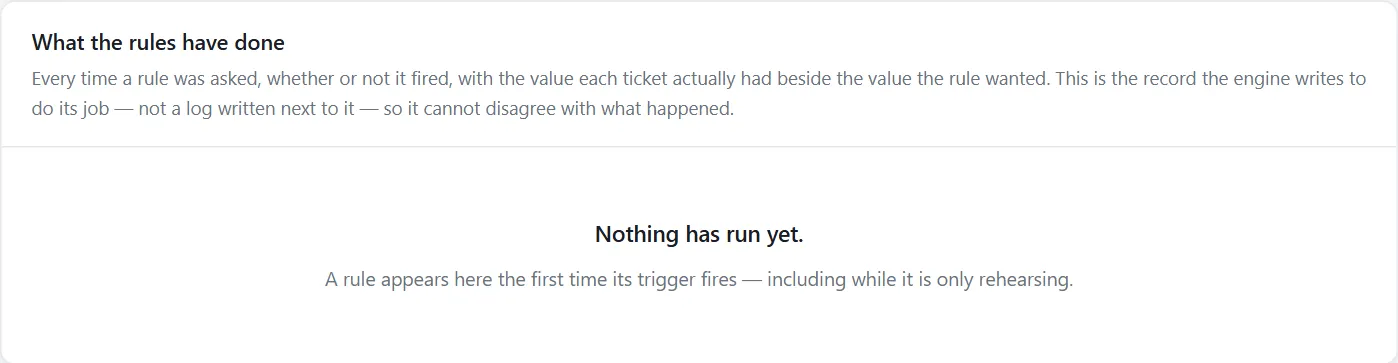
| Column | Shows |
|---|---|
| Rule | The rule’s name, with “Rehearsal — nothing was changed” under it for rehearsed runs. |
| Ticket | The ticket’s number; click to open it. |
| Set off by | The event (for example ticket.created) or schedule.hourly. |
| Outcome | Did not match, Finished, Part way through (waiting), Stopped, Failed or Matched. |
| When | How long ago it ran. |
Why opens the steps. Each condition shows yes or no, what the rule wanted and “this ticket had: …”. Each action shows did, would (rehearsal) or refused with the reason, such as a permission refusal or “Routing is not available on this site.”
A deleted rule’s runs stay in the log under its name.
A Wait pauses a live run for the minutes you gave, then carries on with the next action. When the wait is over the rule:
- reads the rule as it is now (if you edited it meanwhile, the new version carries on from the same step number);
- checks the conditions again against the ticket as it is now. If the ticket no longer matches, the run ends as Stopped with “The wait ended, but the ticket no longer meets the conditions, so nothing further was done.”
So “warn, wait 3 days, close” won’t close a ticket the customer answered in the meantime, as long as a condition notices the answer. A run whose rule or ticket was deleted during the wait is stopped.
Waits are picked up by the background queue, so they need WordPress’s scheduler running. See Background jobs.
Approvals
Section titled “Approvals”Ask somebody to approve the rest stops a live run and waits for a decision. Pick an agent and write what you want approved. Leaving the agent on Whoever it is assigned to means any administrator decides.
Waiting approvals appear at the top of the Automation screen under Waiting for a decision, with the rule, ticket, Asked of and What it wants. The left menu shows how many are waiting beside Automation.
Type a reason in Why, if you like if you want, then:
- Approve: the rest of the rule runs from where it stopped. Its conditions are not checked again.
- Refuse: the run ends and nothing further is done.
Only the agent asked, or an administrator, may decide.
Automation settings
Section titled “Automation settings”Open Automation settings at the bottom of the screen and click Save settings.
| Setting | What it does | Default |
|---|---|---|
| Let rules run | The master switch for all rules. Each rule also has its own Status. | Off |
| Check open tickets hourly for the rules that watch for silence | Runs rules set to On a schedule. Without it they never fire. | On |
| Runs to keep | How many runs the log keeps, 200 to 100,000; the oldest go first. Runs still waiting are never removed. | 5,000 |
Old runs are trimmed during the hourly scheduled check, so the log is only trimmed while at least one switched-on rule runs On a schedule.
Rules brought in from older add-ons
Section titled “Rules brought in from older add-ons”If your site used the Agent Auto Assign add-on, its rules appear here as rules of their own, already Live, each “When a ticket was raised, if …, assign it to …, and skip the rules after it”. Their description says what each was called. A rule that couldn’t be brought across exactly is switched Off and says why.
The older Ticket Auto Close setting (see Ticket settings) is separate from rules and keeps working: once a day it closes answered tickets whose last reply is older than that many days.