

Email languages
With the Email pack, every template on Outgoing Email → Email Templates can have a version per language. Each person then gets the version in their language, where there is one.
Which language a person gets
Section titled “Which language a person gets”The help desk reads the Language in the recipient’s WordPress profile (Users → Profile). If that is empty, WordPress uses your site’s language. Then it picks a template in this order:
- A version in exactly that language and region, for example French (Canada),
fr_CA. - A version in the same language for another region: the language’s “home”
region first (
fr_FR), then any other (fr_BE). - A version in your site’s own language.
- The default template, the one marked All languages.
It never switches to a different language, however close: someone set to Portuguese never gets Spanish.
Where a ticket was raised through a particular form (with the Customer Experience pack’s multiple forms), that form’s own version in a language wins over the general version in the same language.
Adding a language version
Section titled “Adding a language version”The languages offered are the ones installed in WordPress. To add one, install it first: choose it under Settings → General → Site Language and save, then switch your site back if you need to.
-
Go to Outgoing Email → Email Templates and pick the message.
-
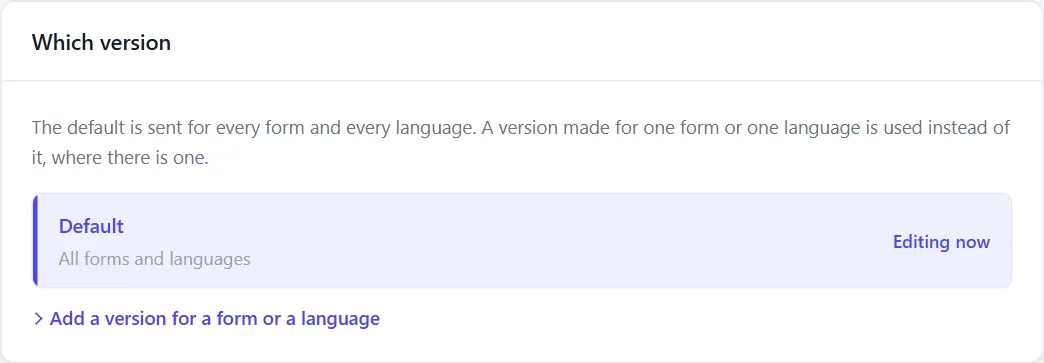
In Which version, open Add a version for a language (or Add a version for a form or a language).
-
Choose the Language and click Create Template. The new version starts as a copy of the default.
-
Open the new version from the Which version list, translate its Subject and Body, and click Save Email Template.
Keep every placeholder, such as {TICKETURL}, exactly as it is: the help desk
fills them in when it sends. To remove a version, click Delete beside it in
the Which version list.
The Email Languages screen
Section titled “The Email Languages screen”Outgoing Email → Email Languages shows the state of every translation. Only administrators can open it.
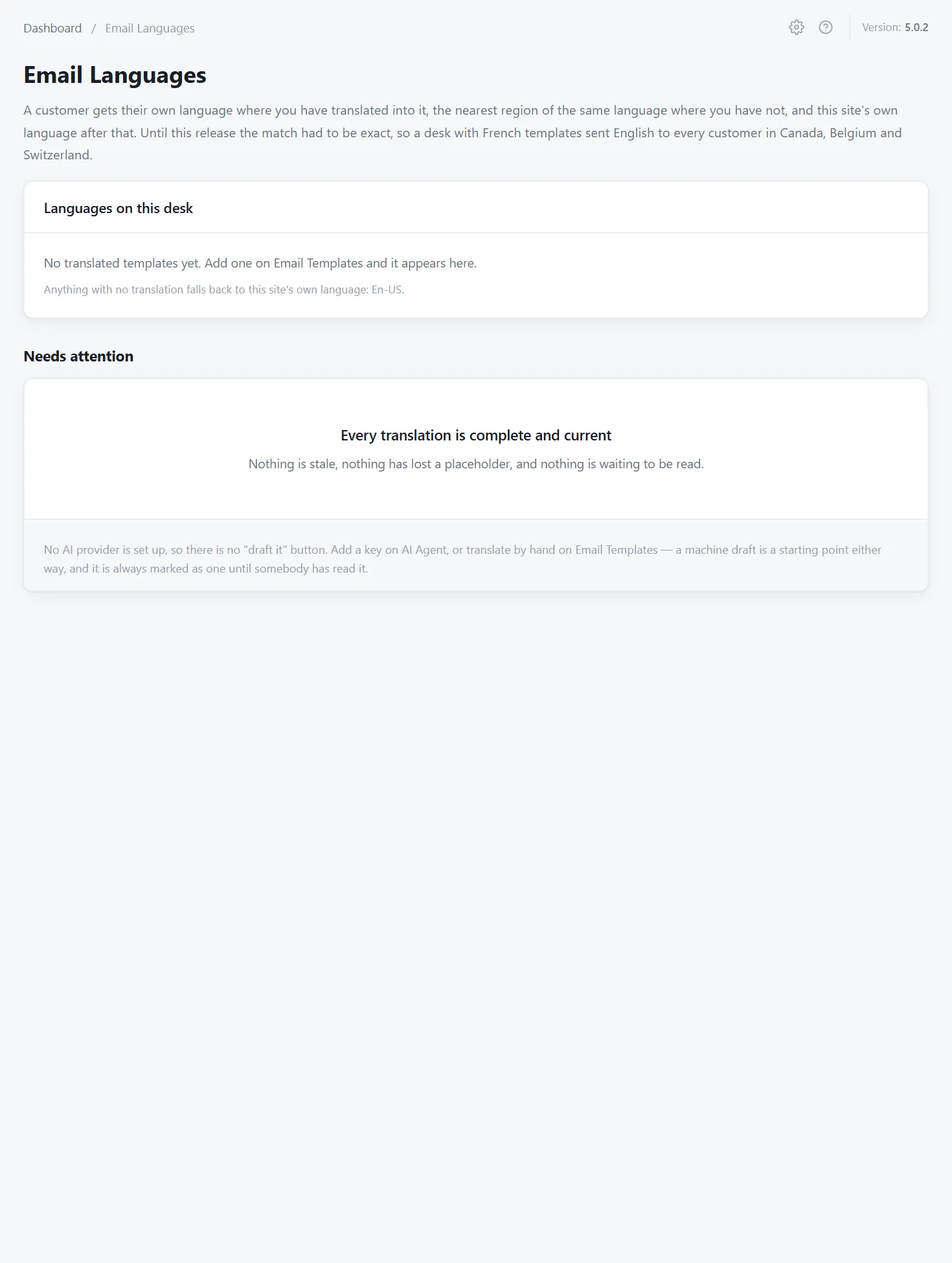
Languages on this desk lists every language you have at least one version in, marking right-to-left ones, and names the fallback: “Anything with no translation falls back to this site’s own language: …”.
Needs attention
Section titled “Needs attention”Each row is one language and one template (shown by its internal name, such as
ticket-new), with What is wrong:
| Problem | What to do |
|---|---|
| “No translation at all. This one goes out in the fallback language.” | That language has versions of other templates but not this one. Add it, or click Draft it with AI. |
| “Missing: {…}. An e-mail without those is an e-mail with no link in it.” | The translation has lost placeholders the default has. Put them back on Email Templates. |
| “The English it was translated from has been edited since.” | The default changed after this translation was made or last reviewed. Compare them, update the translation, then click I have read it. |
| “Machine translated and not reviewed by anybody yet.” | An AI draft. Read it, correct it, then click I have read it. |
| “There is no English template of this kind any more, …” | The default it belonged to is gone, so it is never sent. |
| Right-to-left warnings | For Arabic, Hebrew, Persian, Urdu and similar: the markup forces direction: ltr, text-align: left, or a left margin or padding. Use text-align: start and margin-inline-start instead. |
Preview shows the version “as it will arrive”, with sample values in place of a few common placeholders and right-to-left languages shown right to left. Anything still in curly braces is a placeholder the sample has no value for.
I have read it marks the version as reviewed by a person and records the current default as what it was translated from. That clears the “machine translated” and “edited since” warnings; missing placeholders and right-to-left warnings stay until you fix them.
Draft it with AI
Section titled “Draft it with AI”When an AI provider is set up under AI Agent, missing translations get a Draft it with AI button. The AI is told to keep every placeholder and the HTML exactly, and to add nothing.
The draft is saved at once as a real version, so it is sent from then on, and marked “Machine translated and not reviewed by anybody yet.” If it lost placeholders, the message after drafting names them: put them back before relying on it. Without an AI provider, the screen explains where to add one.
Complete and current
Section titled “Complete and current”Translations with no problems, with Translated by: a person, or a machine, read by a person. Preview works here too.