

Paid Support: setting up
Paid Support sells support in advance. Customers buy credits in your WooCommerce shop, and each new ticket uses one. Every credit bought, used, refunded, expired or adjusted is written down, so you can always see why a balance is what it is.
It needs WooCommerce. For a limit that renews by itself, such as 40 tickets a month, use Support Entitlements instead.
Setting it up
Section titled “Setting it up”-
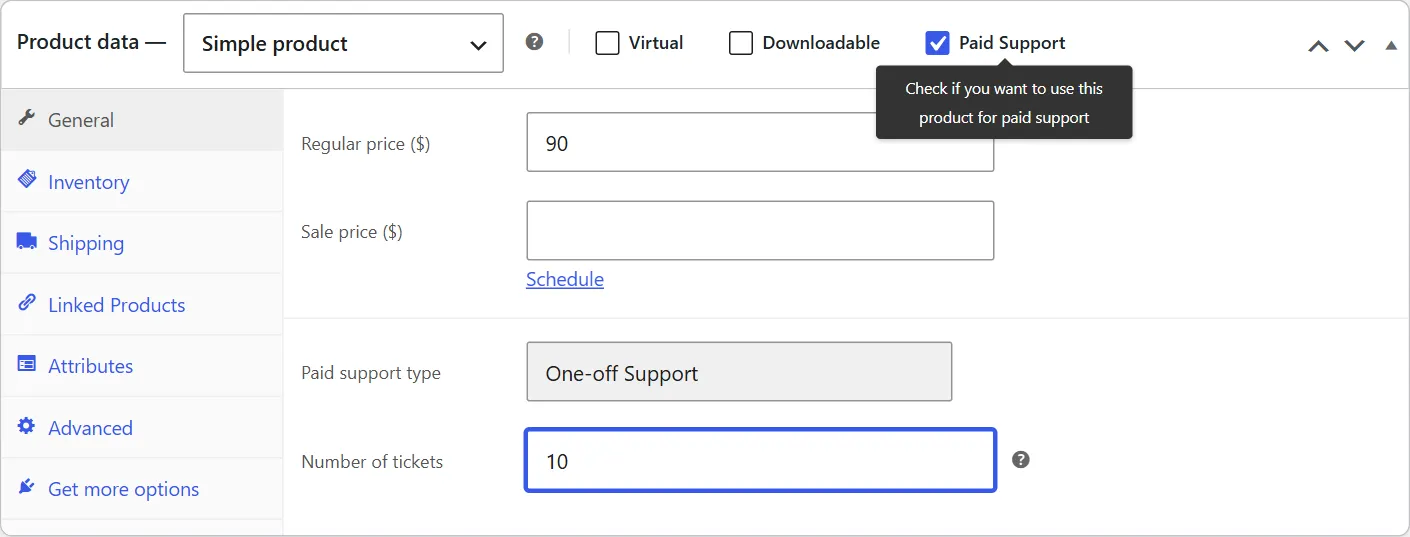
Make a support product. In WooCommerce, add or edit a simple or subscription product, for example “10 Support Tickets”. At the top of the Product data box, tick Paid Support. Two fields appear:
- Paid support type shows One-off Support or Subscription Support, depending on the product type. You can’t change it here.
- Number of tickets: how many credits one unit of this product gives.
Enter
-1for unlimited.
Click Update (or Publish).
-
Choose the rules. Go to Commerce & Integrations → Paid Support and fill in Settings at the bottom (see Settings). Tick Require credits for new tickets when you are ready for tickets to use credits.
-
Test it. As a customer, buy the product and complete the order. Their address appears under Balances with the credits. With Require credits for new tickets ticked, raise a ticket as them: the balance goes down by one, and Credit history shows “used” with a link to the ticket.
How many credits an order gives
Section titled “How many credits an order gives”Credits are given when WooCommerce records the payment as complete, or when the order is marked Completed, whichever comes first. Each order line is credited once, however many times WooCommerce reports it.
- The credits go to the order’s billing e-mail address. Balances belong to an e-mail address, so guest checkouts work.
- Credits = Number of tickets × quantity. Left empty, it is one credit per
unit bought.
-1(unlimited) is recorded as 100,000 credits. - One-off credits never expire. Subscription credits expire at the end of the billing period they were bought for, and each renewal payment gives the next period’s credits.
Variable products have their own Paid Support box on each variation, but the credits are worked out from the parent product’s settings. Use simple or subscription products.
The Paid Support screen
Section titled “The Paid Support screen”Commerce & Integrations → Paid Support. Administrators only.
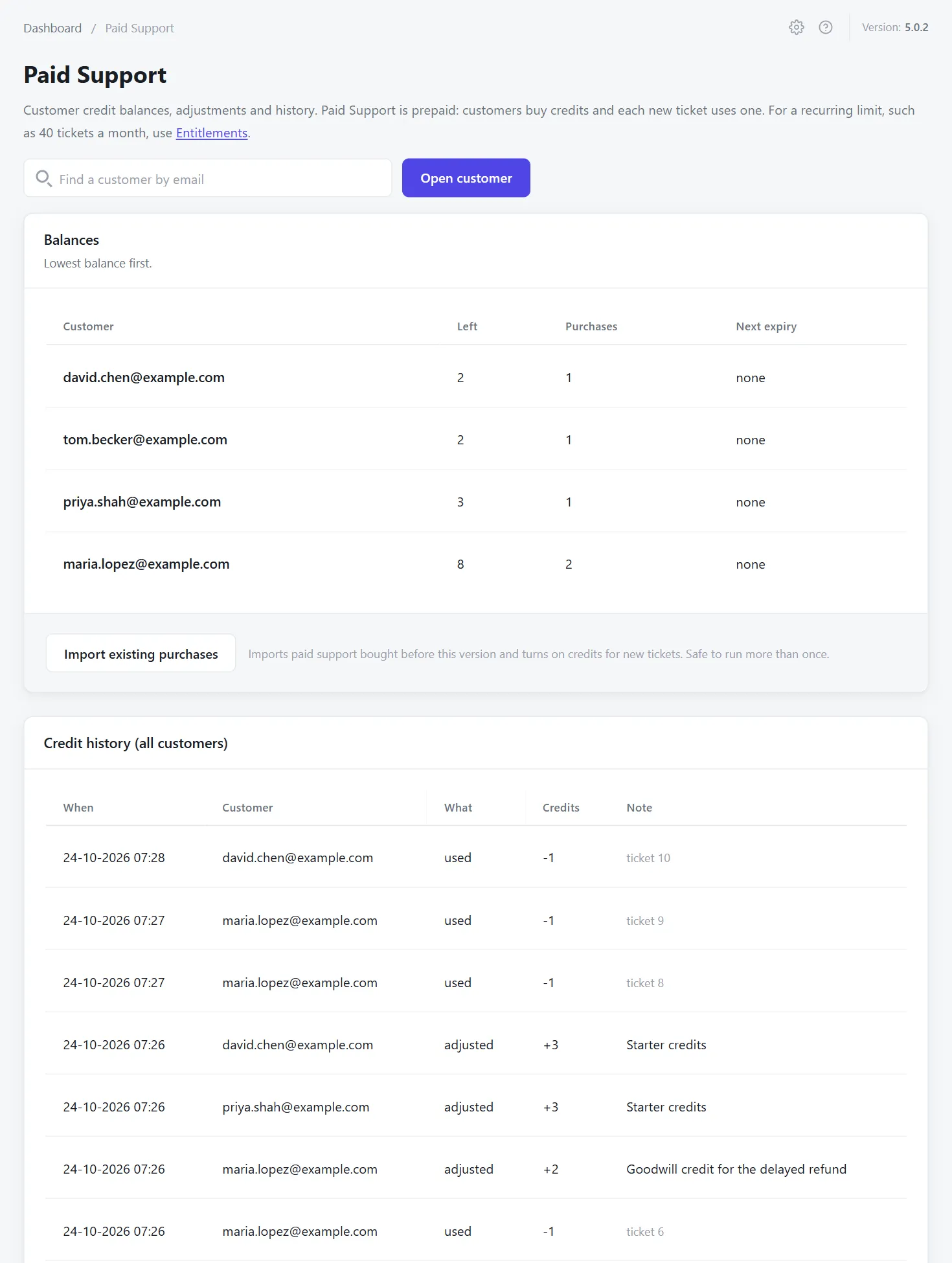
Balances
Section titled “Balances”Everyone who holds or has held credits, lowest balance first, so the people about to run out are at the top: Customer, Left, Purchases (how many purchases still show on their balance) and Next expiry. Click an address to open that customer.
One customer
Section titled “One customer”Type an address into Find a customer by email and click Open customer. This works for anyone, including someone who has never bought credits.
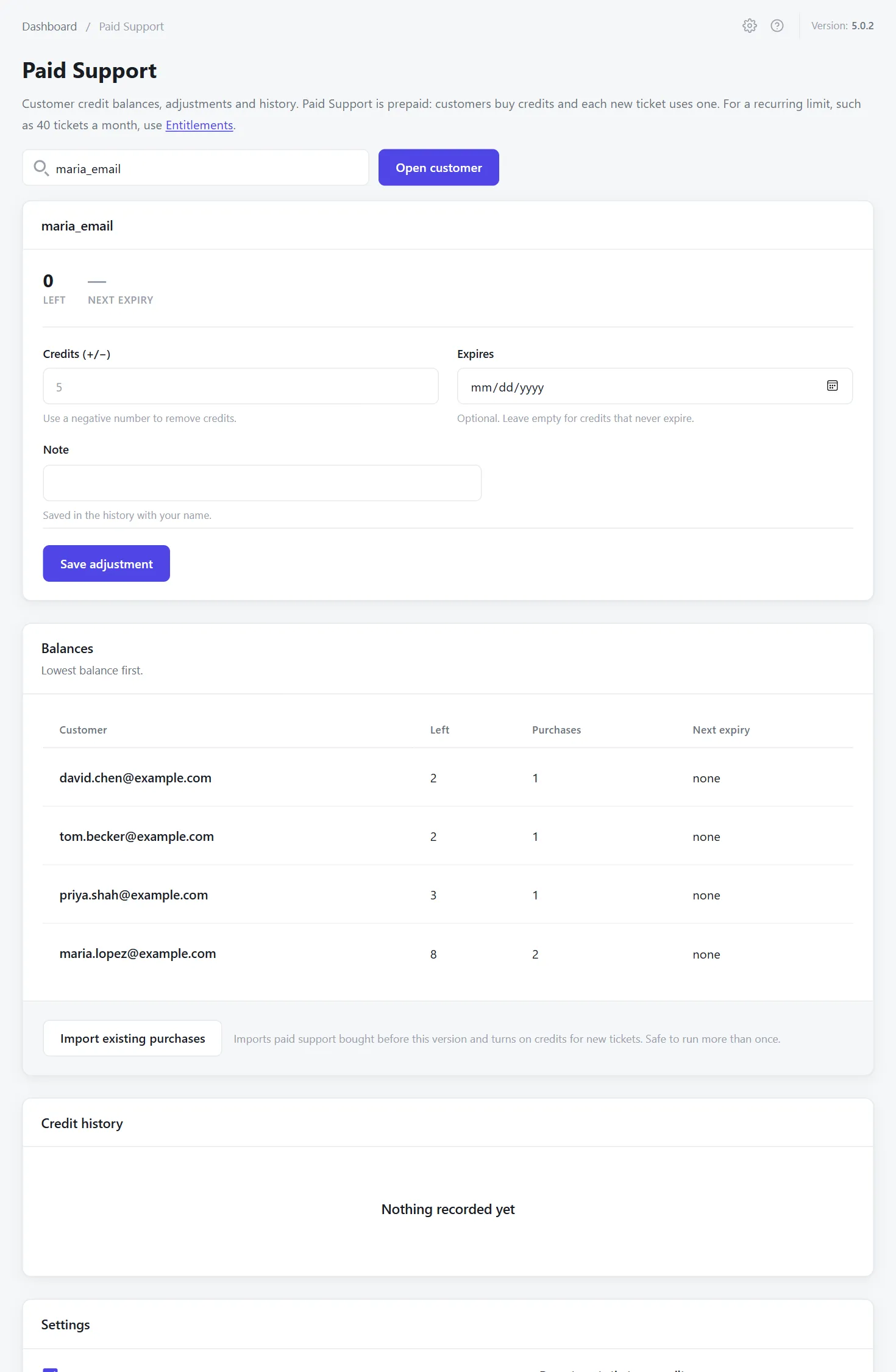
You see Left, Next expiry, and a row for each purchase: Bought (the product’s name, or “Support” for credits you added), Left, Of and Until (“no expiry”, a date, or a date marked “expired”).
Adjusting a balance
Section titled “Adjusting a balance”Under the customer’s purchases:
| Field | What it does |
|---|---|
| Credits (+/−) | How many to add, or a negative number to remove. Not 0. |
| Expires | Optional, for added credits. Empty means they never expire. |
| Note | Why. Shown in Credit history. Customers don’t see it. |
Click Save adjustment. Added credits behave like bought ones: they are used, can expire, and show up in the customer’s history as “Added by support”. Removed credits come off the purchases that expire soonest, and never take a balance below zero.
Credit history
Section titled “Credit history”The last 60 entries, newest first: for everyone, or for the customer you opened. Each has When, Customer, What (bought, used, refunded, expired or adjusted), Credits and Note, with a link to the ticket where one was involved.
Import existing purchases
Section titled “Import existing purchases”If you sold paid support with an earlier version, click Import existing purchases under Balances. It reads your 200 most recent completed orders and brings each paid-support purchase across, with the tickets already raised against it, so customers keep exactly what they had left. It only reads from WooCommerce and is safe to run more than once.
If it brings anything across and Require credits for new tickets was off, it turns it on, and says “Credits are now required for new tickets.”
Settings
Section titled “Settings”| Setting | Default | What it does |
|---|---|---|
| Require credits for new tickets | Off | On: each new ticket uses a credit, and a customer with none can’t open one. Off: purchases are still recorded, but tickets don’t use credits and nobody is refused. |
| Departments that use credits | None ticked | Which departments a customer needs credits for. None ticked means all of them. Leave one free, such as Sales, so people can still ask before they buy. |
| Message when a customer has no credits | Empty | Up to 400 characters. Empty, customers see “There is no support left on this account. Buying more will let you raise another ticket straight away — the tickets you already have are unaffected and can still be replied to.” |
| Low balance warning at | 2 | At this many credits or fewer, the customer’s credit bar turns to a warning and offers Buy support. |
| Email the customer when credits run low and when they run out | On | Sends one e-mail when a ticket takes the balance down to the warning level, and one when it takes the last credit. |
Click Save.
The shop category
Section titled “The shop category”System → Configurations → General, Paid Support tab.
| Setting | Default | What it does |
|---|---|---|
| Woocommerce Category | None (every product) | Shows only products from this category on the WooCommerce shop page. This affects your whole shop page, so only use it if your shop sells nothing but support. |